
Evidence
Trace Intercept supports the creation and sharing of structured visual evidence linked directly to asset context.
Evidence in Trace Intercept preserves the exact state of an asset at the time of review, enabling defensible documentation, cross-team alignment, and regulatory transparency.
This page describes how to create and use evidence within the platform.
Purpose of Evidence
Evidence in Trace Intercept allows you to:
• Record observations during inspection
• Document defects
• Preserve exact visual context
• Share findings across teams
• Provide regulators or auditors with traceable references
• Compare asset condition over time
Evidence is always tied to a specific asset, date and visual state.
Creating Notes
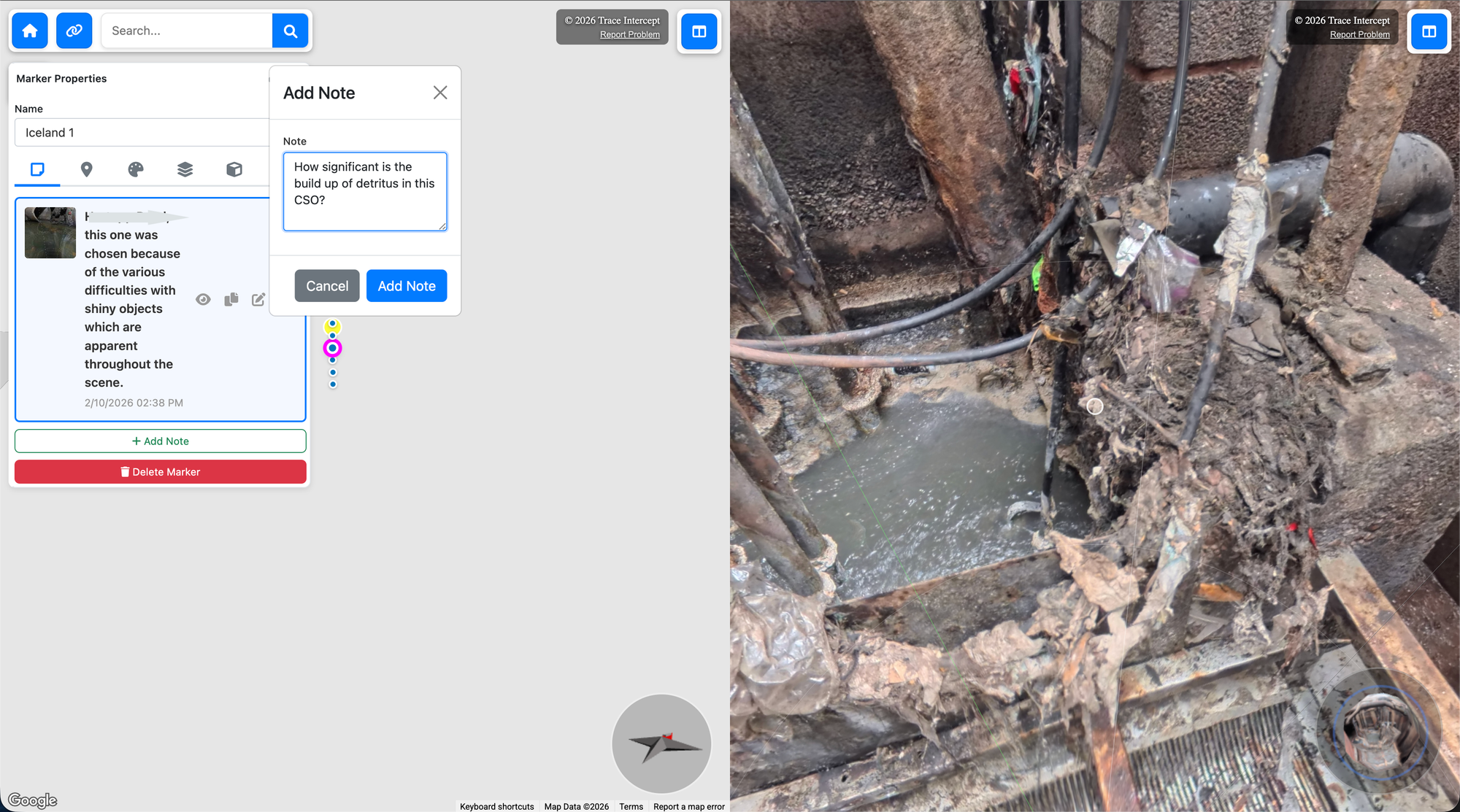
Notes allow you to record structured observations.
To create a note:
- Navigate to the asset
- Adjust map position and image orientation as needed
- Confirm the correct shot sequence is selected
- Create a note
- Save
The note preserves:
• Map position
• Map orientation
• Zoom level
• Active shot sequence
• Image orientation
• Image zoom
Anyone clicking on the notes sees the same visual context.
Notes are useful for:
• Inspection findings
• Meeting outcomes
• Informal condition records
• Follow-up actions
Using Permalinks for Evidence
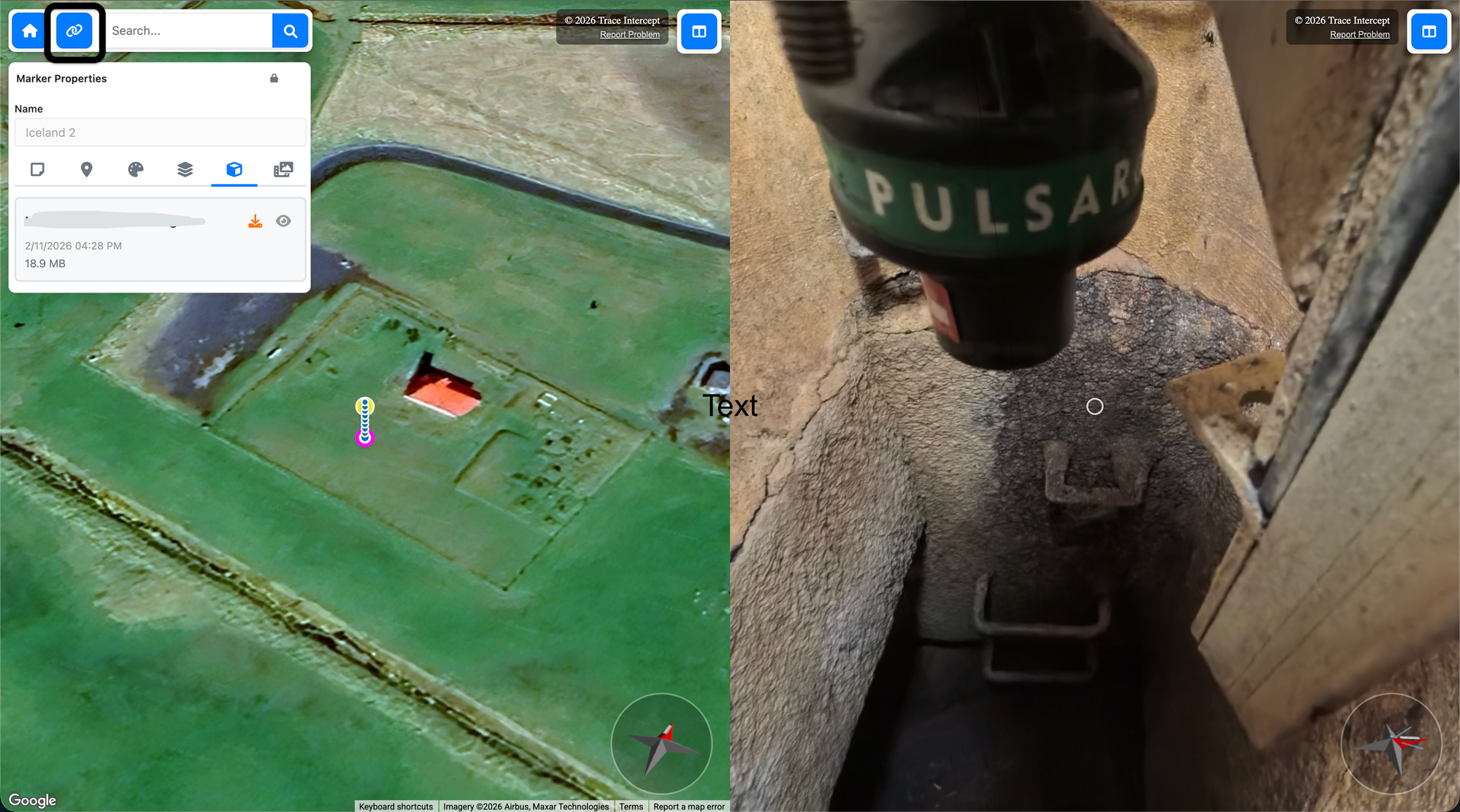
Permalinks are central to defensible documentation.
A permalink preserves:
• Asset identity
• Capture date
• Map location
• Map orientation
• Active shot sequence
• Image orientation
• Image zoom
When shared, the recipient sees the same state that was reviewed.
Permalinks can be used in:
• Emails
• Internal reports
• Meeting records
• Regulatory submissions
• Incident reviews
Using permalinks reduces ambiguity and ensures consistent interpretation.
Before and After Documentation
Where multiple capture dates exist, Trace Intercept supports structured comparison.
To document change over time:
- Select the earlier capture
- Record observations
- Switch to the later capture
- Record observations
- Share both permalinks if required
This supports:
• Post-maintenance verification
• Incident impact review
• Condition progression tracking
• Capital project validation
Consistency in orientation improves comparison clarity.
Collaborative Evidence Creation
Evidence is often created during live review sessions.
During a session:
• Share a permalink
• Confirm all participants see the same state
• Record notes as discussion progresses
• Capture agreed outcomes
Recording evidence directly within the platform reduces reliance on external screenshots or disconnected documentation.
Reconstruction-Based Evidence (If Enabled)
If the Reconstruction module is enabled for your organisation:
• Measurements may be recorded as part of inspection
• Calibration should only be performed when required by internal procedures
• Mesh exports may support engineering documentation
Reconstruction is not required for standard visual evidence.
See Reconstruction for more information.
What Effective Evidence Looks Like
Effective evidence in Trace Intercept:
• Clearly identifies the asset
• Preserves visual context
• Documents observations concisely
• References the correct capture date
• Can be independently opened and reviewed
The objective is clarity, traceability, and shared understanding.
Next Steps
After creating evidence, you may:
• Share permalinks with stakeholders
• Initiate internal workflows
• Export documentation
• Proceed to further inspection or analysis
Trace Intercept provides structured visual context. Your organisation defines how evidence is formally reviewed, approved, and archived.
Choose Your Starting Point
If you are rolling Trace Intercept out → Start with Enablement
If you are preparing for a site visit → Start with Plan
If you capture assets → Start with Capture
If you review assets → Start with Inspect
If you run joint sessions → See Collaborate
If you provide formal documentation → See Evidence
If reconstruction is enabled → See Reconstruction
If you are considering process change → See Transformation
If you have questions → See FAQ
Still need help? → See Support & SLAs